4G Pager Manual
Once your pager is linked to your account in the app, this page covers how to use the device itself — turning it on, receiving and responding to pages, reading and managing messages, and what the screen is telling you.
Getting to know your pager
Your pager has just three controls, and you'll only need two of them day to day.
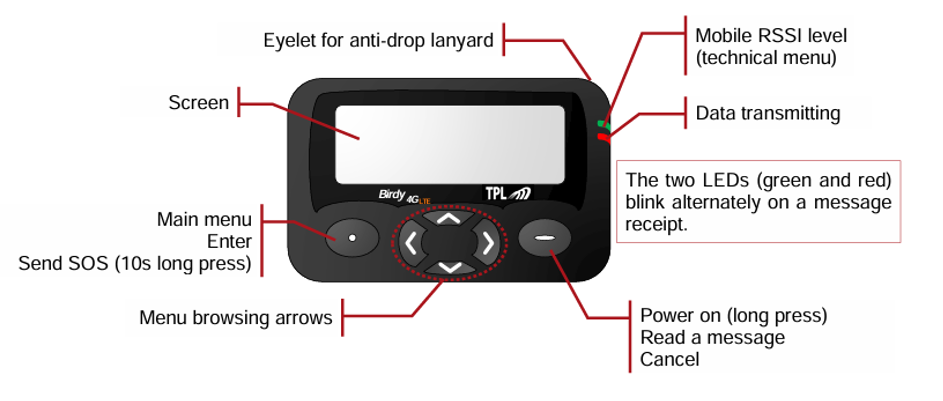
- The — button (right) does most things: hold it to turn the pager on, press it to open and scroll a page, and press it to cancel.
- The arrow keys (centre) move up/down through a message and left/right between messages.
- The • button (left) opens the menu.
The green and red lights flash together whenever a page arrives.
Turning it on
Hold the — button (bottom-right) for about 5 seconds until the screen lights up. The pager runs through a short start-up.
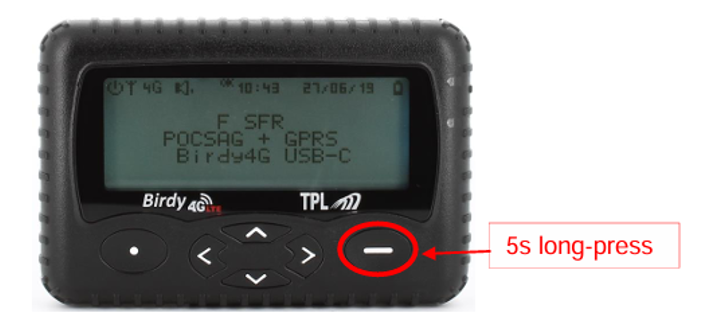
It then connects to the mobile network. When the 4G icon appears at the top of the screen, it's connected and ready to receive pages — this can take a few minutes, and a red light shows while it's searching.
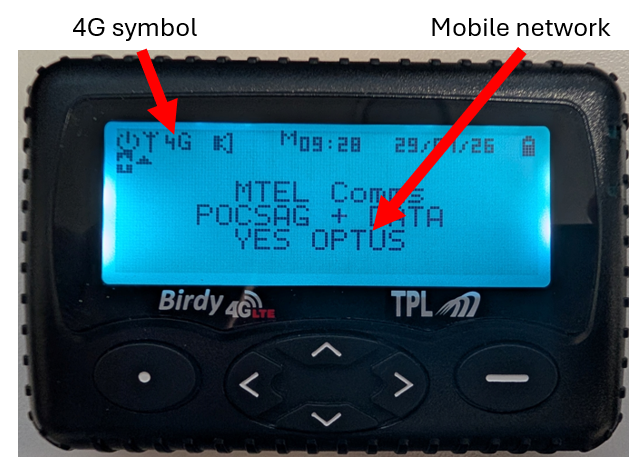
The 4G icon means it's connected and ready
No 4G icon after 5 minutes?
The pager can't reach the network or the MTEL servers. Check whether others in your area have the same problem, and if it persists contact Support.
The main screen
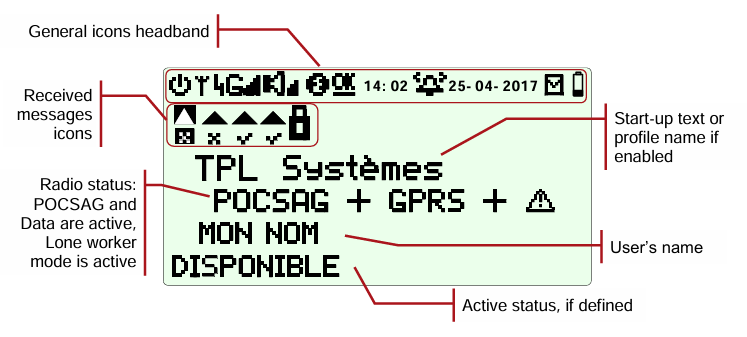
When nothing's happening, the pager shows its main screen. Across the top is a row of status icons (see Screen icons below); the middle shows your name and status.
Receiving a page
The moment a page reaches you, the pager flashes its green and red lights, sounds (or vibrates), and shows the message straight away.
- If the message is long, use the ▲ / ▼ arrows to scroll through it.
- Then respond to it (see below) — every page needs a response.
Responding to a page
Every page needs a response from you — the pager does not answer on its own. Your response goes back to Comms and the crew, exactly like responding to a turnout in the app.
When a page comes in:
- Press the — button to bring up the responses.
- Use the ▲ / ▼ arrows to choose one.
- Press the • button to send it.
Your choices are the same as the app's turnout responses:
| Response | Meaning |
|---|---|
| Fast / Medium / Slow | You're attending ("Yes") — pick the one that matches your time to station. These use the Fast / Medium / Slow times you set in the app. |
| Scene | You're heading straight to the incident (Meet on Scene). |
| No | You can't attend this one. |
The pager shows "Sending…" and confirms once your response has gone through. Responding on the pager is exactly the same as responding in MTEL Connect.
Reading a message
Open a page (with the — button) to read it in full. The screen shows the message text, when it arrived, and — in the header — which address it came in on and whether your response was sent.
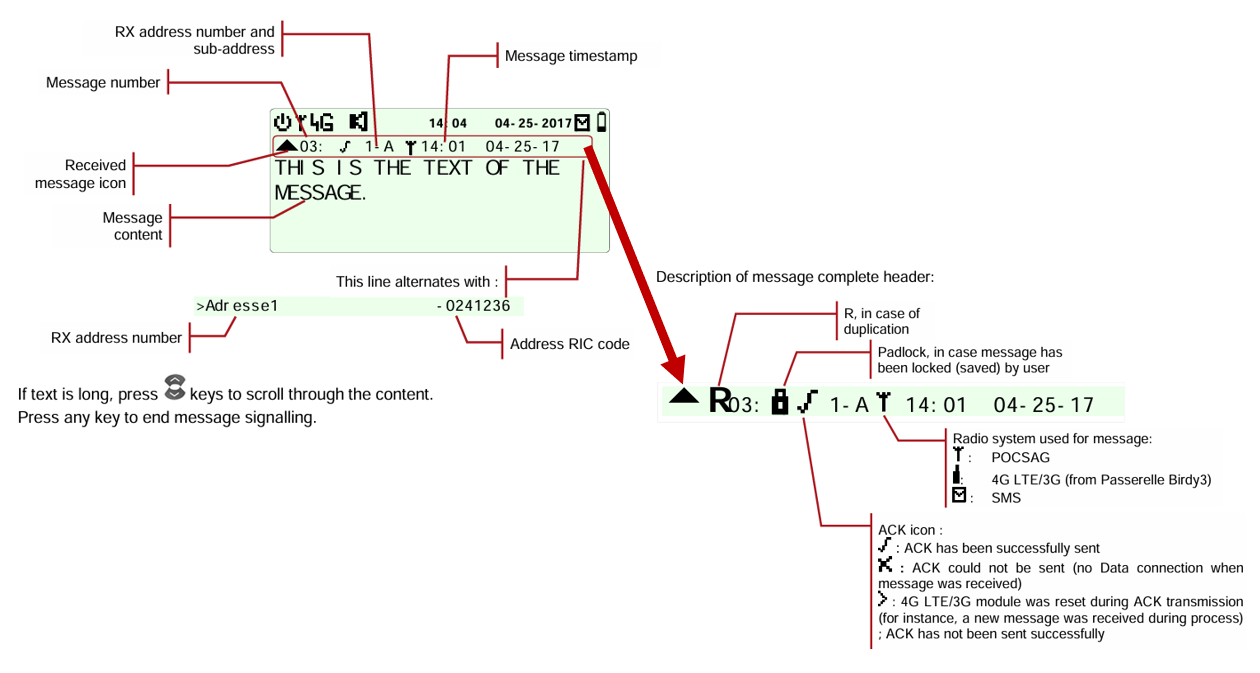
- ▲ / ▼ scroll through a long message.
- ‹ / › move between your stored pages.
Saving and deleting pages
Pages stay on the pager so you can look back at them. With a page open, press the • button to open the message menu:
- Save message keeps it so it isn't cleared automatically (a padlock shows in the header). To unlock it later, open it and choose Cancel save.
- Delete this message removes just that page; Delete all clears them all.
Use the ‹ / › arrows to pick an option and the • button to confirm.
Finding your pager's RIC code
Every pager has a unique RIC code — its radio identity — which you need when you register it in the app. It's printed on the label on the outside of the pager's box, and you can also read it on the pager itself:
- Press the • button to open the menu.
- Use the ‹ / › arrows to reach the Technical menu, then press • to open it.
- Open Identities — the pager displays its RIC code.
It also appears in the header of any page you've received (the address line).
Screen icons
A row of icons runs along the top of the screen. You don't need to know all of them — these are the ones worth recognising.
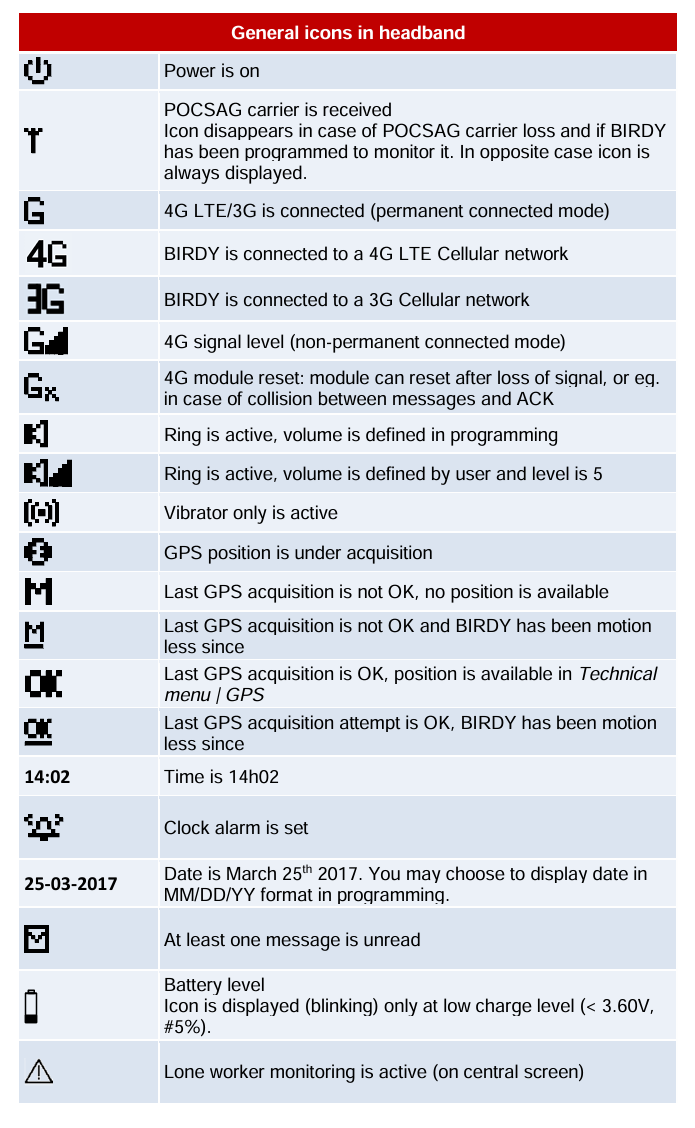
| Icon | What it means |
|---|---|
| 4G / signal bars | Connected to the mobile network — needed to receive and respond to pages |
| Bell / speaker | Alert sound is on (a vibrate symbol means vibrate only) |
| Envelope | You have an unread page |
| Battery | Only appears when the battery is low |
You may also see small triangle icons on the left — a solid triangle marks a page in memory, and a blinking one marks a page you haven't read yet.
Charging and turning off
- Charge the pager on its cradle — the cradle's light turns green. A good habit is to charge it whenever you charge your phone, and don't leave it permanently on charge.
- To turn it off, open the menu with the • button, scroll to Shut down, and confirm.
Device diagrams adapted from the TPL Systèmes Birdy 4G User Manual v1.0.1.