4G Pagers
The MTEL 4G Pager is a mobile device packaged in a traditional pager form factor. To operate, it must first be registered on a supported mobile carrier network and then linked to the MTEL platform to receive messages. Depending on network coverage availability for your site, the pager will operate on the Optus or Telstra network.
To make setup simple, MTEL has integrated pager provisioning with the MTEL Connect app. Once linked, the pager is assigned exclusively to your account, and its availability and behaviour are controlled through the app settings.
MTEL Connect securely links your physical pager to your account, allowing you to test, configure, and manage the device directly from the app. This page will guide you through the process of assigning a pager, verifying its operation, and removing it when required.
Before you start
- Your station must have pagers registered with MTEL. If none are available when you try to add one, contact MTEL support. Support.
- You'll need the pager in front of you — registration requires a one-time code (OTP) sent to the pager which you then type into the app.
- The MTEL Connect App is the only way to register the pager. If you do not have it installed Click here
Assigning a pager using MTEL Connect app
Step 1 — Turn on your pager
On the pager, press the large right hand button until the pager screen lights up. This will take 5 seconds.The pager will then go through an initialisation process.
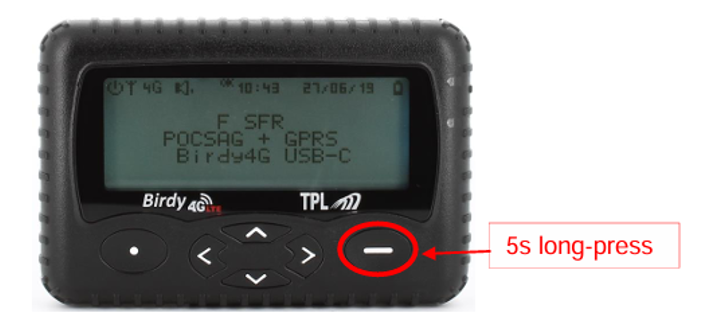
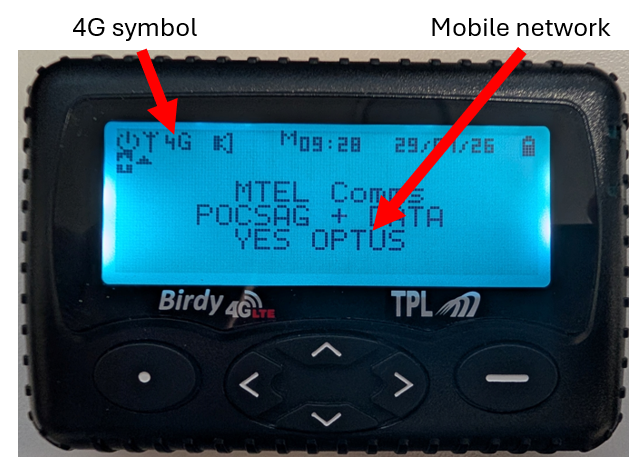
The final step is establishing a connection to the mobile network. Once the pager detects the network and successfully communicates with the MTEL servers, the 4G icon will appear. This may take several minutes. A red light will indicate on the right side of the pager when it is searching for the mobile network.
If the 4G icon does not appear within 5 minutes, the pager has been unable to connect to either the mobile network or the MTEL servers. Before proceeding:
- Check whether other users in your area are experiencing the same issue.
- If the problem persists, contact MTEL for assistance. Support.
- Do not continue with any remaining steps until the 4G icon is visible.
Step 2 — Open the APP Pager card
Go to the Settings page and find the Pager card. If you don't have a pager linked yet, it shows an Add Pager button. Tap it. If the pager card is missing then the app must be upgraded to the latest version. The version at the bottom of the settings page should be greater than 3.7.1 Click here to upgrade the app
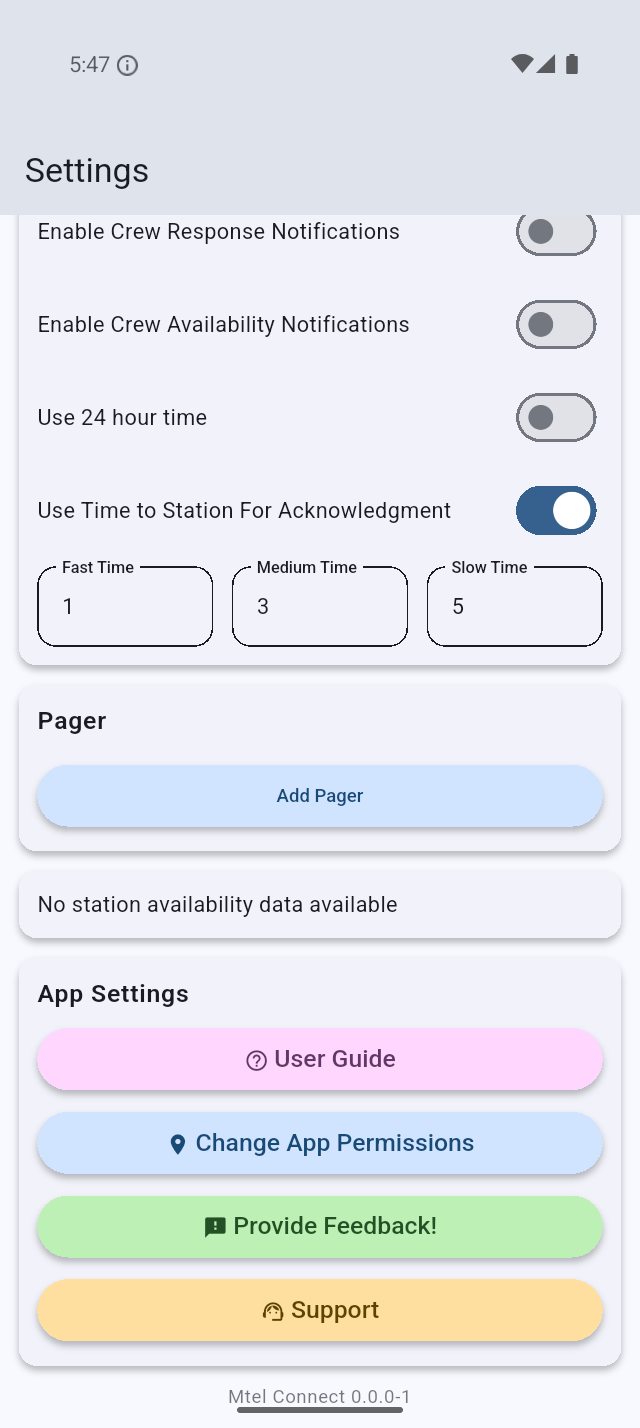
Settings → Pager → Add Pager
Step 3 — Choose your pager
The Assign Pager dialog lists every pager available to your station. Open the dropdown, pick the one that matches your pager's RIC code (code label located on the outside of the pager box) , then tap Send OTP.
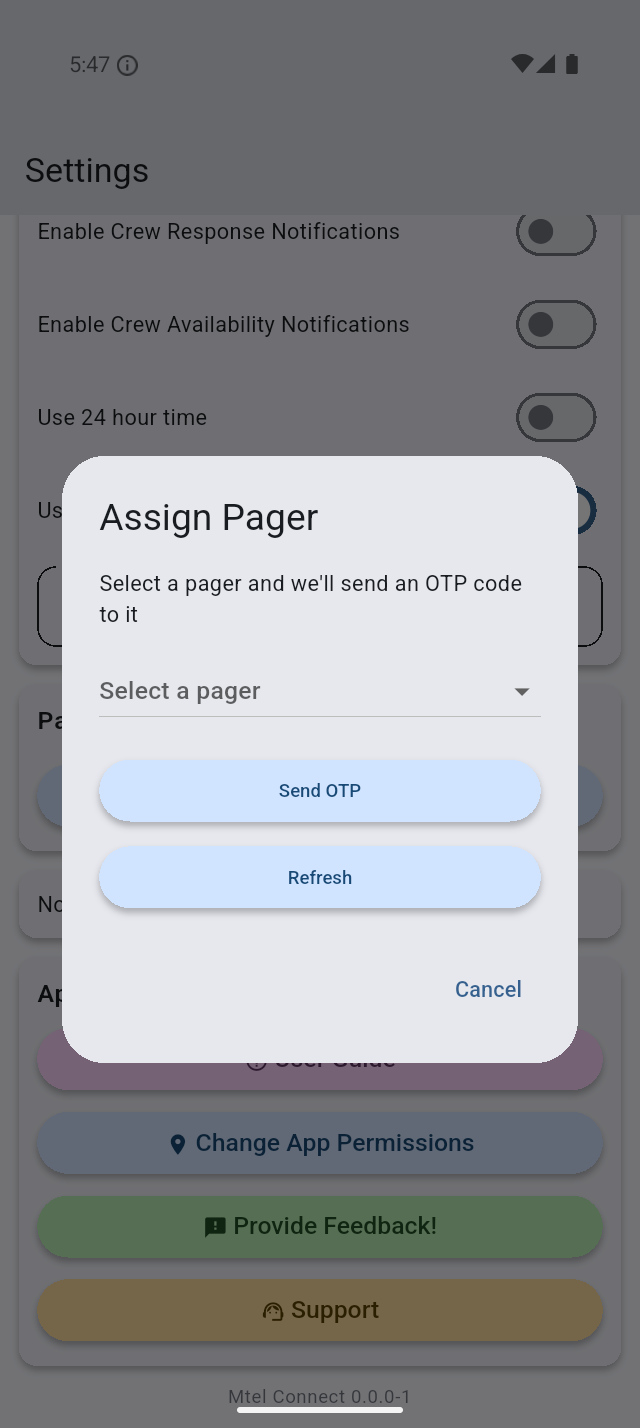
Select a pager to send a code to
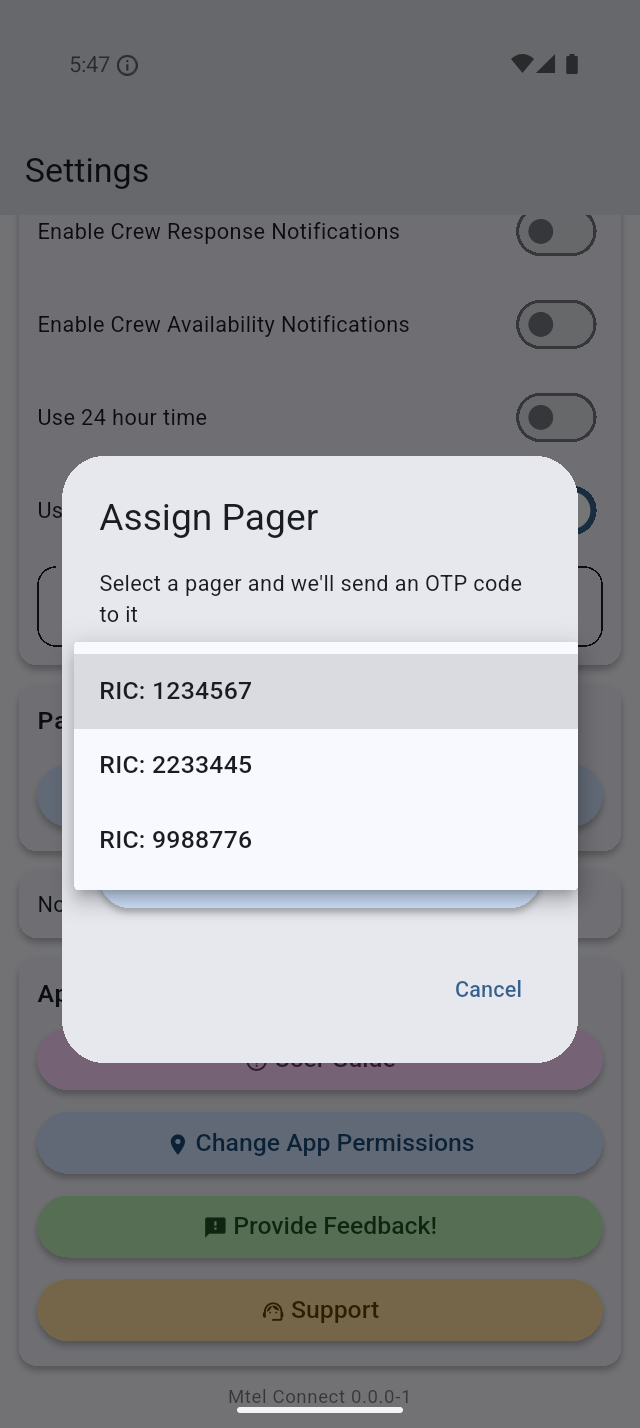
Pagers are listed by RIC code
No pagers listed?
If the dialog indicates there are no pagers available for your station, tap Refresh to check again. If it's still empty, your station has no pagers registered — contact Support.
Step 4 — Enter the code from your pager
Tapping Send OTP sends a short one-time code to the pager you selected. Read the code off the pager, type it into the app, and tap Validate.
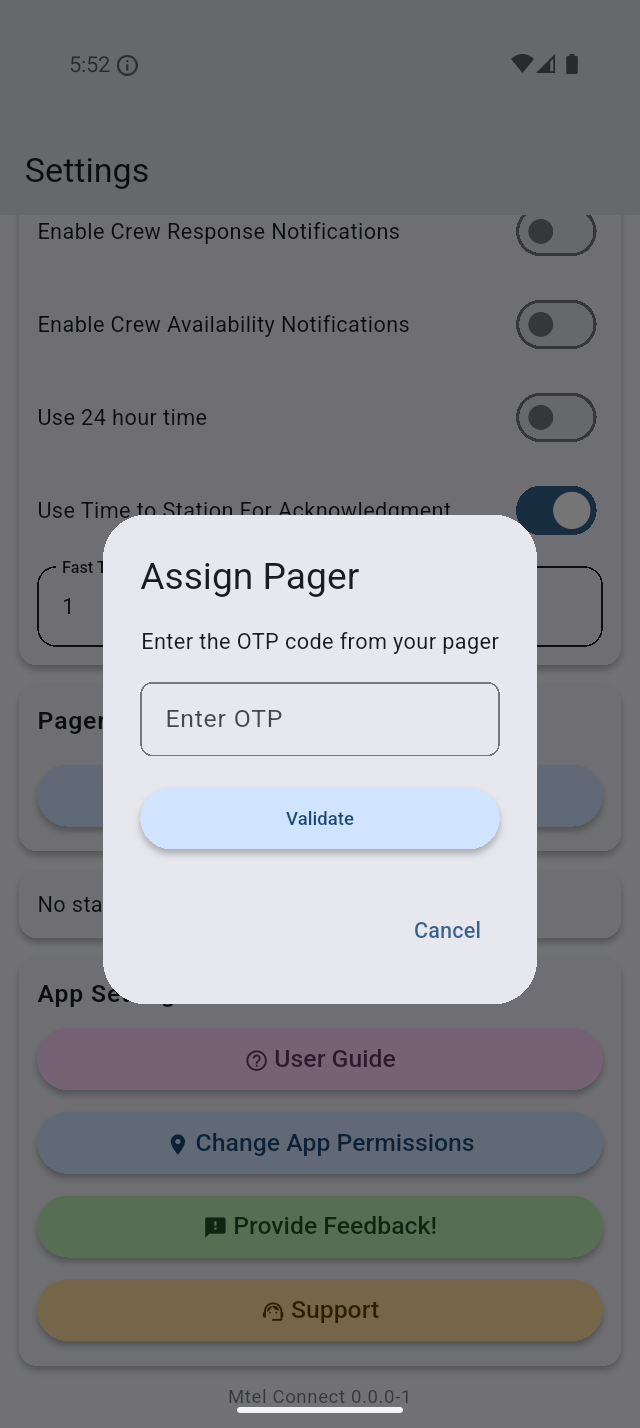
Type the code shown on the pager
Didn't get a code?
Give it a moment — pages can take a few seconds to arrive. If nothing shows up, tap Cancel, check you picked the right RIC code, and try Send OTP again.
Step 5 — Done
Once the code is validated, the pager is linked to your account. The Pager card now shows your RIC code, along with Test and Remove buttons.
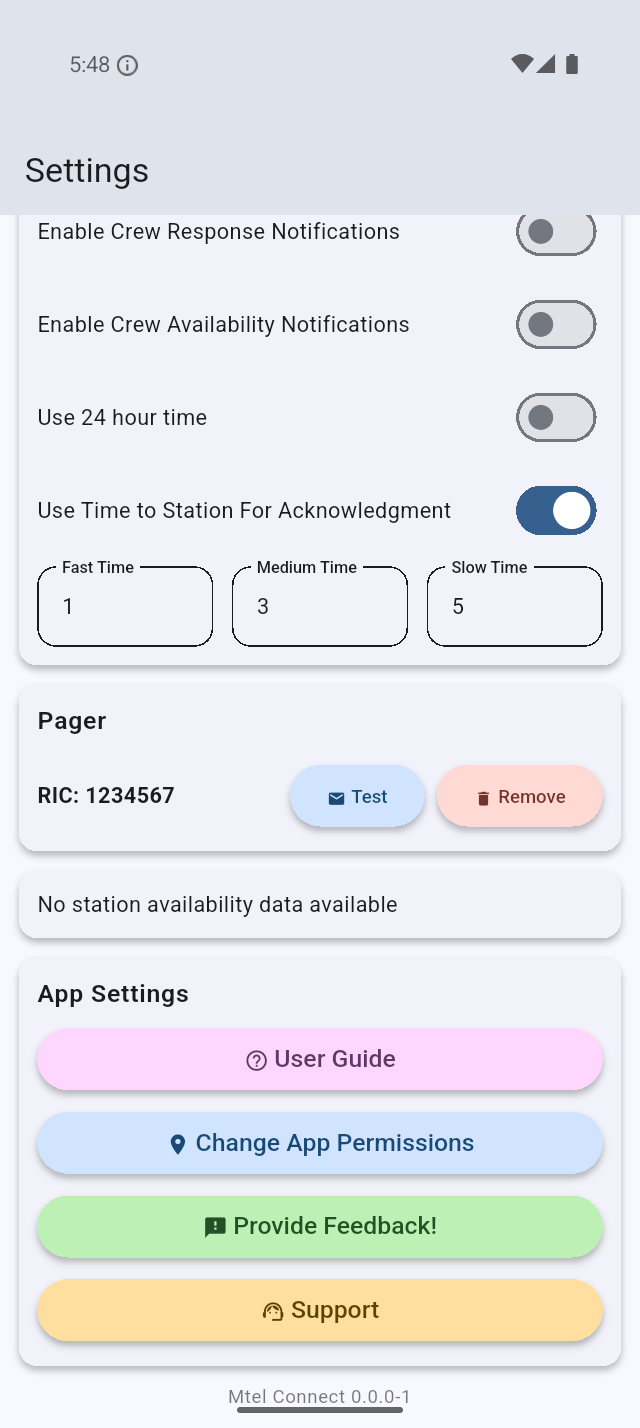
Your linked pager, ready to test
Testing your pager
Tap Test on the Pager card at any time to send a test page to your linked pager. Your pager should receive a short test message — a quick way to confirm it's working and reachable. The test button can be used at any time to check the operation of the pager.
Removing or changing your pager
Tap Remove on the Pager card to unlink the pager from your account. The card returns to the Add Pager state.
To change to a different pager, remove the current one and then assign the new one using the steps above.
If you no longer require a pager, contact MTEL support so the pager can be reallocated to another user.
Do's and Dont's
- Don't leave the pager permanently on charge. It will destroy the battery which is designed to be power cycled.
-
Don't swap your pager with another user. Your pager is linked only to your mobile account via the App. You control the pager using the app e.g. If you are marked away in the App, the pager will also not receive a message.
-
Do charge the pager at the same time you charge your mobile.
- Do contact MTEL immediately if the mobile is lost or damaged. Support.
- Do contact MTEL for any issues with the pager. Support.
Troubleshooting
| Problem | What to do |
|---|---|
| No pagers listed in the dialog | Tap Refresh. Still empty? Contact your station captain — your station has no pagers registered. |
| No OTP code arrived | Wait a few seconds, confirm the RIC code is correct, then tap Send OTP again. |
| The code won't validate | Double-check the digits on the pager and re-enter them. Codes are one-time — if in doubt, cancel and start again. |
| Test page not received | Confirm the pager is powered on and in range, then tap Test again. If it still fails, remove and re-assign the pager. |
Need more help? See Support.